|
This page is for anyone thinking of migrating to the Nokia
E70 with a view to using it as their main communicator, information and
entertainment device.

The E70 has lots to recommend it, from the quite useable
QWERTY thumb keyboard and switchable portrait/landscape screen to the very
latest Symbian OS and Series 60 versions, and with multimedia and Office
functionality thrown in by the bucketload.
 Get up to
date! Get up to
date!
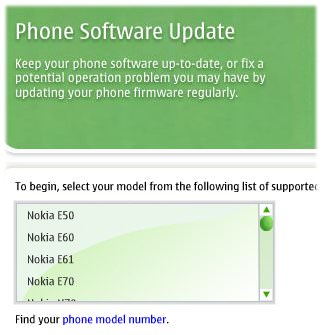
Hopefully this won't apply to you, but if your E70 is quite an
early model, check its firmware (*#0000# on the standby screen) - if the top
number starts with '1.' something, then you've got a very old version of the
internal software and need to upgrade it. Do the usual full sync and backup of
anything important on the internal disk and then pay a visit to
Nokia Software Updater, which will
bring your firmware up to '2.' something and bring a faster and more efficient
device. Really.- Ignore those 'Exit' buttons! Usually...
You
can have many of your Series 60 apps running at the same time, which means no
delays while applications are launched/switched to, with the usual trick being
to ignore the 'Exit' buttons. When you need to switch to a different
application, press the Menu ('Applications') button and select it from there,
leaving the current app running.
However: don't do this for Camera
or Web or games or Java programs or sat-nav suites, any of which can hog RAM
and cause your other main programs to close down. In other words, DO use Exit
for these specific programs to make sure memory is freed up.
 Open up your device Open up your device
By default, the E70 and other
modern Series 60 smartphones come 'locked down' in terms of the applications
they'll accept, installing only those that have large companies behind them,
able to afford the expensive 'Symbian Signing' process. But there are hundreds
of other great applications, many of them free, that are 'untrusted' (although
under S60 3rd Edition, untrusted applications are slightly restricted in what
they can do). Don't worry about this (see my malware
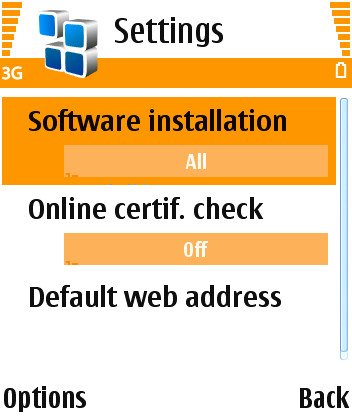
article to put your mind at rest). Just go to 'Tools | App manager | Options |
Settings' and set 'Software installation' to "All". and 'Online certif check'
to "Off". You can now install any compatible program without being blocked by a
spurious security warning!
- Use those shortcuts!
As befits a communicator
with a proper keyboard (in landscape mode), Nokia have outfitted the E70 with
lots of shortcuts. Here are a few of my favourites: In any text-entry
application, Ctrl-C copies highlighted text, Ctrl-X cuts it and Ctrl-V pastes
it, just as in any desktop application. Ctrl-left/right moves the cursor
back/forwards a word, Ctrl-up/down moves back/forwards a paragraph.
With
keypad closed again now, in Gallery/Images, '3' rotates images, '*' toggles
full-screen on/off, while '5' zooms in and '0' zooms out.
In Gallery/Video
clips, '2' toggles full-screen playback and navigator-up fast forwards within a
clip.
In Calendar, '#' moves you immediately to the current day, while '*'
toggles between the different views.
- Pump up the brightness
Make sure you increase
the screen from the default brightness to its maximum. Yes, there's a hit on
the time between battery recharges, but in the meantime you'll see some
glorious colours. Go to 'Tools | Settings | Phone | Display | Light sensor' and
adjust away. Of course, for night-time use, your smartphone can double as an
emergency torch or, if you're actually reading from the screen, you can use the
same setting to turn the brightness right down to save being dazzled.
 A cleaner, brighter standby screen A cleaner, brighter standby screen
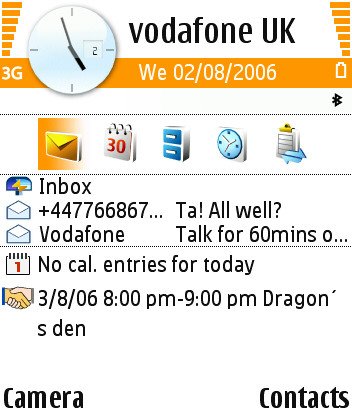
You can do a lot to
make your active standby screen brighter, cleaner and more useful. See my
tutorial
over on AllAboutSymbian. In particular, note the inclusion of Inbox/email
entries. You can turn display of these on (with the latest E70 firmware) in
Tools | Settings | Phone | Standby mode | Active standby mailbox).
- The ones you love the most (1)
With the Nokia
E70, there's S60's usual 'active' standby screen. Don't just take the shortcuts
given, I'm sure you have ideas of your own as to your most used applications.
You can change any of the seven shortcuts in the rather-hidden-away 'Tools |
Settings | Phone | Standby mode | Active standby apps'
- Messages overview
If the tiny font used in
the display of each folder really annoys you as much as it does me, simply go
into 'Settings>Other' and set 'Folder view' to '2 lines'. This is an Eseries
perk and makes message overviews much, much clearer!
- Clearing up the trash
It seems that in S60
3rd Edition, the entire install SIS files from some third party applications
get stored on your internal flash disk (C:), completely unnecessarily. If
you've installed several meaty games or applications, you can easily lose 10 to
20MB in this way. Use the built-in File manager to navigate into 'Installed
files' and delete the SIS files, to reclaim the space. (It won't hamper removal
of the applications later, don't worry)
- The latest and best
Make sure you keep up to
date with PC Suite. Yes, there's a version on the CD that came with your
smartphone, but Nokia are fixing bugs and adding bits and pieces all the time.
Most useful is the way you can explore your smartphone's folders (including
your text Inbox) from within Windows Explorer. Very cool. Keep an eye on the
PC Suite home page
and stay current!
 Go Stereo! Go Stereo!
For some
penny-pinching reason, Nokia only supply the E70 with a mono headset. Run,
don't walk, to your nearest accessory online store and get one of
Nokia's Pop Port
stereo adaptors and you'll soon be rocking to music from your miniSD card.
If you find the music too quiet, try my
Equaliser
hack. Also, for greater efficiency on your miniSD card, you may want to use
.ogg files and OggPlay rather than the standard
Music player.- Hangup = Exit
Don't keep switching back to
the Standby screen using the Hangup button. This was OK on old versions of S60,
but in almost every instance it closes the current application on the E70 - in
other words, it acts as 'Exit'. If you want to keep the current program running
in the background, press Menu/Apps instead, twice if you want to get to Standby
screen.
- What's running?
The one utility every
computer user needs is a system task manager (i.e. what's running). Luckily,
the basics are built-in. Just press and hold the 'Menu/Applications' button.
For more control, grab the trial version of
Best TaskMan.
- The ones you love the most (2)
If you get fed
up scrolling down the Menu screen looking for your favourite applications
again, why not shuffle things round so that the apps you use the most
are clustered right at the top? Highlight an icon and use 'Move', and you'll
find you can re-insert it anywhere in the list. If you have lots of favourites,
make the most of the folder system (e.g. 'Games') and then put these folders
near the top of the list, for speedy access.
|


